

Flow Versions
In short: Manage and restore previous versions of your Noca AI flows. Track changes over time and roll back to any earlier version with full version history.
Last updated:
Key takeaways
- A version in Noca AI is a named snapshot of a flow that you can roll back to, compare or promote.
- Create one by clicking the Save icon and choosing Save Version; saving a version does not publish it.
- Only the Current state can go live, so promote an older version to current before clicking Go Live.
Watch & Learn
What Is a Version?
A version captures a snapshot of your flow at a specific moment. By naming and saving a version, you can roll back to previous states, compare changes, or promote any snapshot to be your current working flow.
Before we dive into managing versions, it’s worth understanding the “save” actions in the builder and how to create a new version.
Your flow is auto-saved at regular intervals. However you can also click the Save icon in the header strip at any time to save manually.
Clicking on the “Save” icon opens a two-option menu:
- Save Version — which lets you store a new version of your flow under your chosen custom name.
- Save — which stores the canvas’s state at that moment.
Why is saving versions important?
Regularly Saving Versions after major milestones makes experimenting safe and lets you recover any state with a single click, so better make it a habit.
Also, be sure to give your versions unique and meaningful names, so you can easily recognize what’s in them.
This will enable you to Instantly roll back to any named snapshot as well as let you move freely between iterations without losing work.
Creating a Version
Creating a version is really easy. All you have to do is:
Click on the “Save” icon in the header

When a small menu opens choose “Save Version”
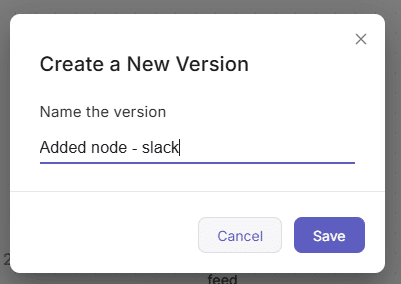
Give this version a unique name and save
- Please note that Save Version merely creates a snapshot—it doesn’t publish it. To make that version live, open the Versions modal and click Go Live on your newly saved version.
Versions Screen
Access the Versions modal by clicking Versions in the header strip. Here you’ll see every version you’ve created -and tools to manage them.

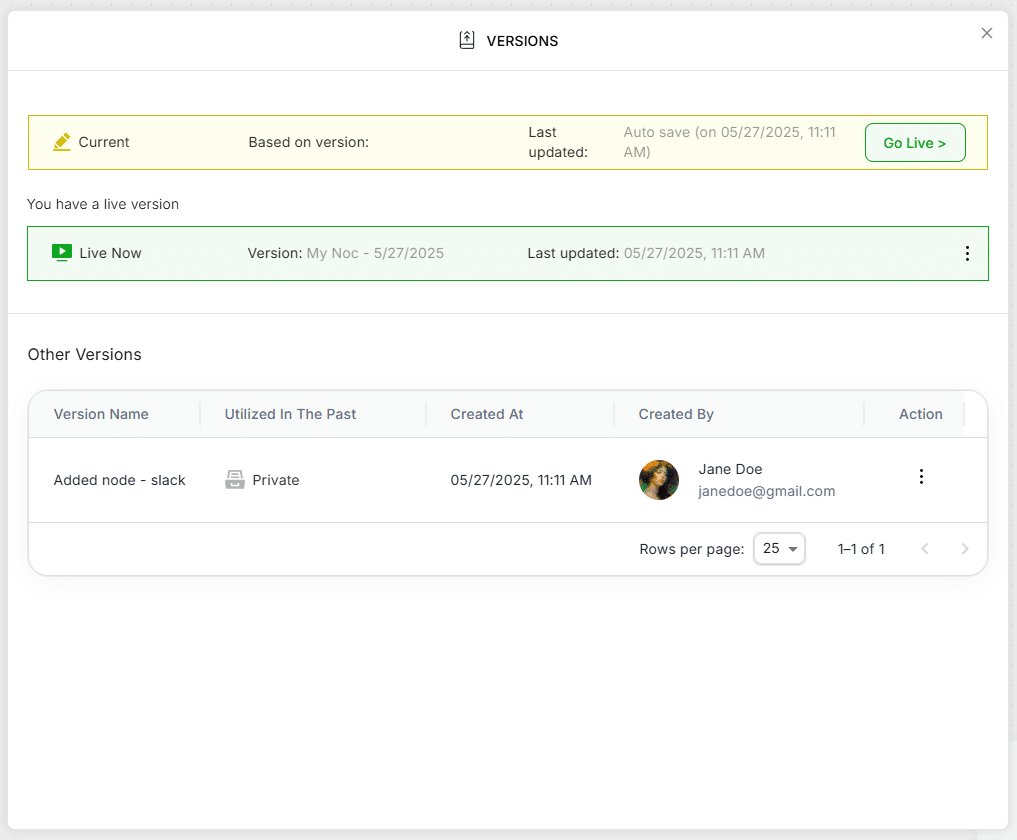
The screen contains the following:
Current Version strip

This yellow-highlighted strip represents the live state of your canvas. Even if you haven’t “saved a version,” your work is constantly updating here.
Identifiers
yellow icon + “Current” label
Version Name
if you’ve promoted a saved version, its name appears here
Last Updated
timestamp and whether it was auto-save or manual
Go Live
button that publishes the current state.
Two important things you need to know about going live:
- Going live also creates a new version automatically.
- You can only publish the current state (in the current strip”).
so if, for example you want to make a specific version live, you will need to promote it to “current” before pressing on “go live”.
Live Version strip

Once a flow Goes Live, a green strip appears below the Current strip, showing the version that’s running in production.
This strip contains:
Identifiers
green icon + “Live Now” label
Version Name
Last Updated
date & time stamp
Kebab Menu:
with two options:
- View Details
- Stop Live (take this version offline)
Version History Table
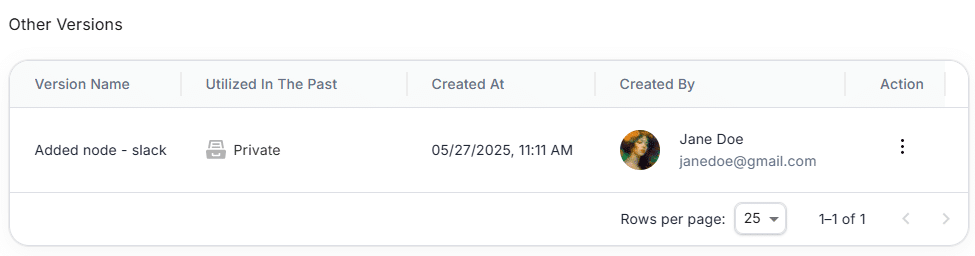
Below the strips, you’ll find a table listing all other saved versions (most recent at the top):
Version Name
Your custom label for the version snapshot
Status
Indicates if it was ever live (date) or if it is private
Created At
Date & time the version was created
Created By
User avatar, name, and email
Actions (Kebab)
- View Details
- Promote to Current
Use this table to quickly review past iterations, drill into details, promote past versions to current state, or swap back to your last version.
Frequently asked questions
How do I save a version of a flow in Noca AI?
To save a flow version in Noca AI, click the Save icon in the Flow Builder header strip, choose Save Version from the small menu, and give the version a unique, meaningful name. Noca also auto-saves your flow at regular intervals, but named versions let you roll back to a specific snapshot later.
Does saving a version publish my Noca flow?
No. In Noca AI, Save Version only creates a snapshot of the flow and does not publish it. To make a flow live, open the Versions modal from the header strip and click Go Live on the Current strip. Going live also creates a new version automatically.
How do I roll back a Noca flow to an earlier version?
In Noca AI, open the Versions modal from the Flow Builder header. In the Version History table, open the kebab menu of the version you want and choose Promote to Current. Because only the current state can be published, promote the older version first and then click Go Live if you want it in production.
How do I take a live Noca flow offline?
In the Noca AI Versions modal, the green Live Now strip shows the version running in production. Open its kebab menu and select Stop Live to take that version offline. The same menu also offers View Details to inspect the live version.