


Flow Settings – General
In short: Configure general settings for your Noca AI flows. Control execution preferences, naming, permissions, and other key options from one settings panel.
Last updated:
Key takeaways
- The Noca Flow Builder Settings modal opens from the Settings icon and has General, Permissions, Test Data, Test Scenarios and Policies tabs.
- The General tab includes Project Name, Continue on Error, Pause Flow on Error and Send Email on Error.
- Allow this Flow to Run In controls whether the flow runs independently or only when embedded in another flow.
Watch & Learn
Overview
The Flow Builder includes a Settings modal that allows you to configure various aspects of your flow. This modal is accessible from the header strip by clicking the Settings icon, and it contains several tabs:

- General
- Permissions
- Test Data
- Test Scenarios
- Policies
In this article, we’ll focus on the “General” tab, which includes five main properties:
General Properties
Project Name (input)
A textbox in which you can rename your project. (You can also rename it directly from the header by clicking on the project name.)

Continue on Error (toggle)
This property allows you to define whether the job stops or continues when an error occurs.
Read more about Continue on Error
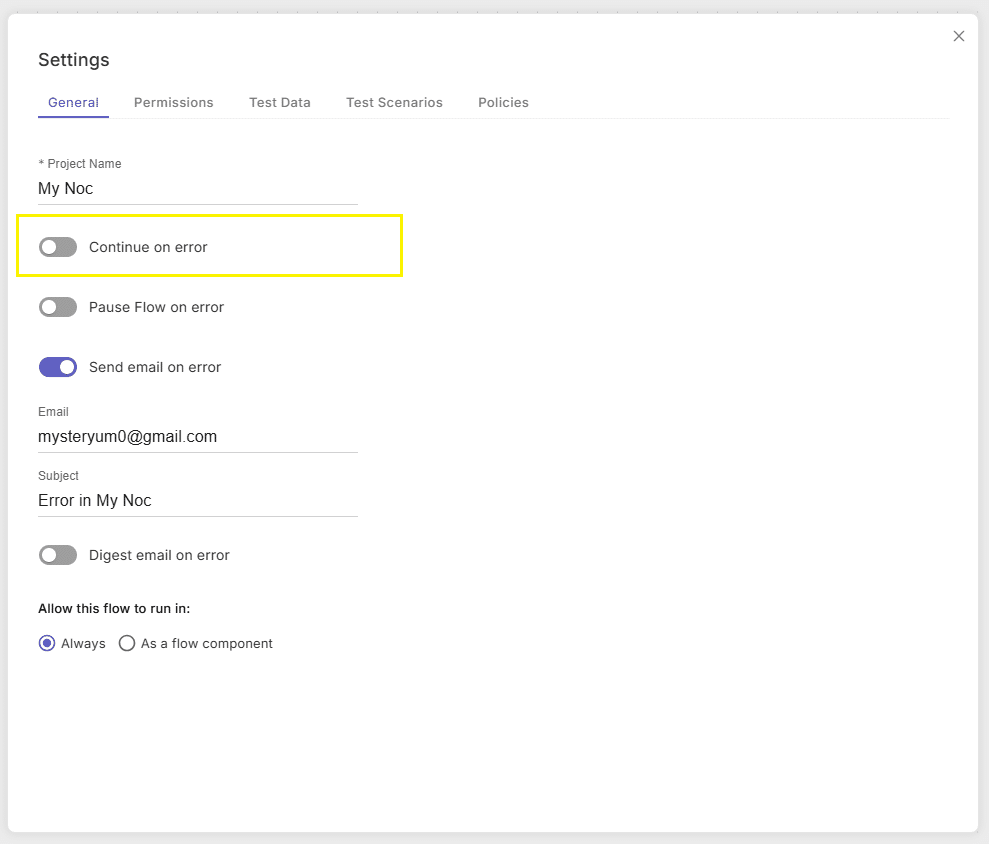
Pause Flow on Error (toggle)
This property allows you to pause the flow (make it inactive for a while) when an error is detected.
When the toggle is turned ON additional settings appear.
Read more about Pause Flow on Error

Send Email on Error (toggle)
This setting enables automatic email alerts when an error occurs.
It will also Display additional settings when turned on. Read more about Send Email on Error

Allow this Flow to Run In (radio button)
This setting determines whether the flow will run only when it is embedded in another flow, or if it will run nonmatter if it is independent or embedded. It will Display additional settings when turned on.
Read more about Allow this Flow to Run

Frequently asked questions
Where are flow settings in Noca AI?
Flow settings in Noca AI are in the Settings modal of the Flow Builder, opened by clicking the Settings icon in the header strip. The modal contains the General, Permissions, Test Data, Test Scenarios and Policies tabs, which let you configure different aspects of how your flow behaves.
How do I get notified when a Noca flow fails?
In the Noca AI Flow Builder, open Settings and go to the General tab. Turn on the Send Email on Error toggle to enable automatic email alerts when an error occurs; additional settings appear when it is on. You can also use Pause Flow on Error to make the flow inactive when an error is detected.
What does Continue on Error do in Noca flow settings?
Continue on Error is a toggle on the General tab of the Noca AI flow Settings modal. It defines whether a job stops or continues running when an error occurs. It sits alongside Pause Flow on Error and Send Email on Error, which pause the flow or send email alerts on errors.
How do I rename a flow in Noca AI?
You can rename a Noca AI flow in the Project Name textbox on the General tab of the Settings modal, opened from the Settings icon in the Flow Builder header. Alternatively, rename it directly from the header by clicking the project name.