

How to Publish a Word Document Template Into a NOCA Workflow
Noca Doc Gen
Bring your data to life by publishing your template to a flow
In this guide, we’ll show you how to publish a Word document template in NOCA as a live workflow triggered by Salesforce. You’ll create a new flow, map the Opportunity ID into your Word node, and automatically send the generated document to Slack for delivery.
Please note that these steps apply to documents which do not contain input fields or signature blocks. If your document contains input fields or signature blocks please refer to separate documentation.
Watch & Learn
Follow these steps to add and configure it:
Steps:
Confirm your Word Template is ready
- Make sure that your Word document template has already been created
- Confirm that your template includes the fields coming from your system of record (Salesforce, Monday.com, Netsuite, etc.)
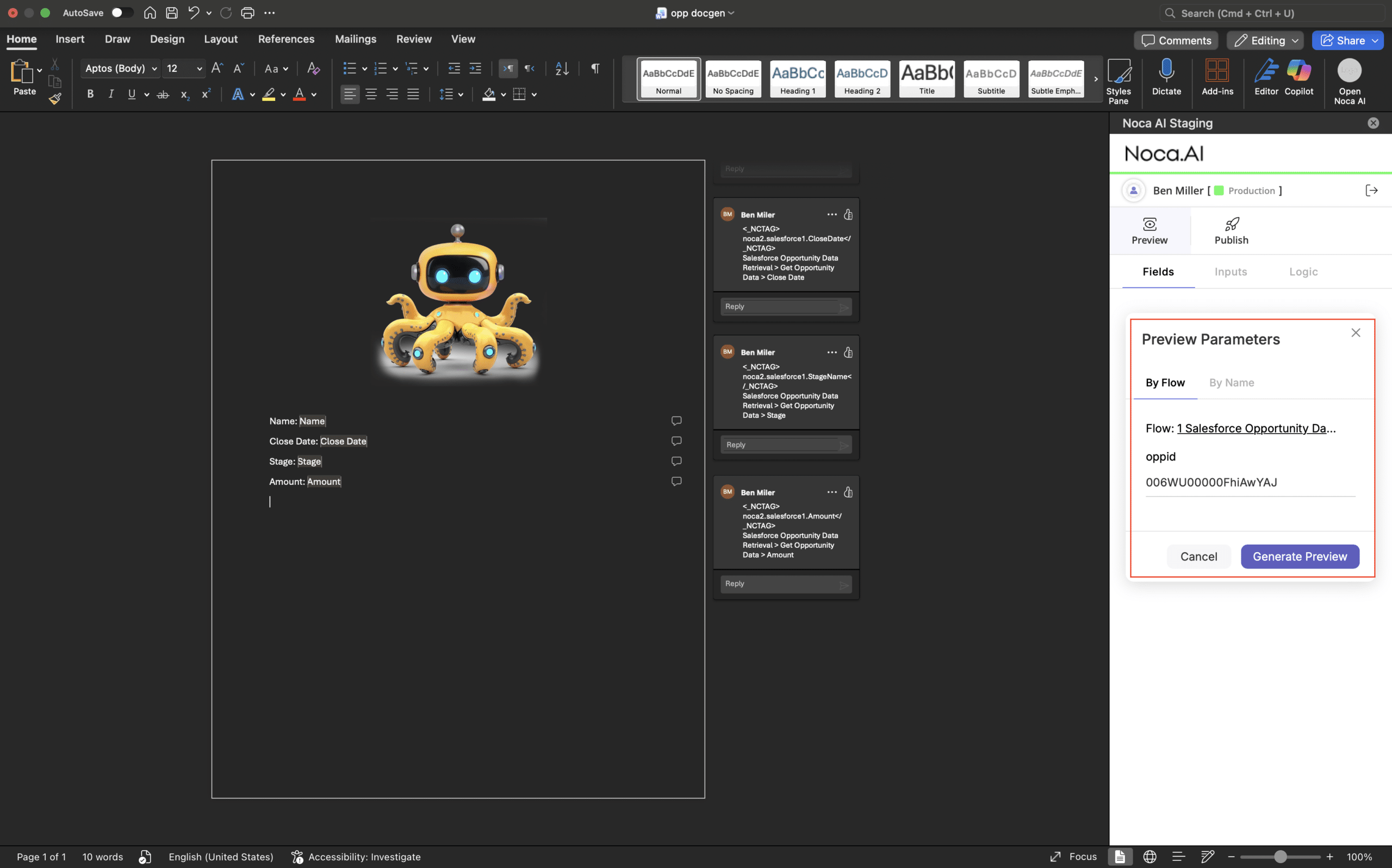
- Preview the template using a record ID from your CRM or ERP to confirm that the fields populate correctly

Publish your Template into a Flow
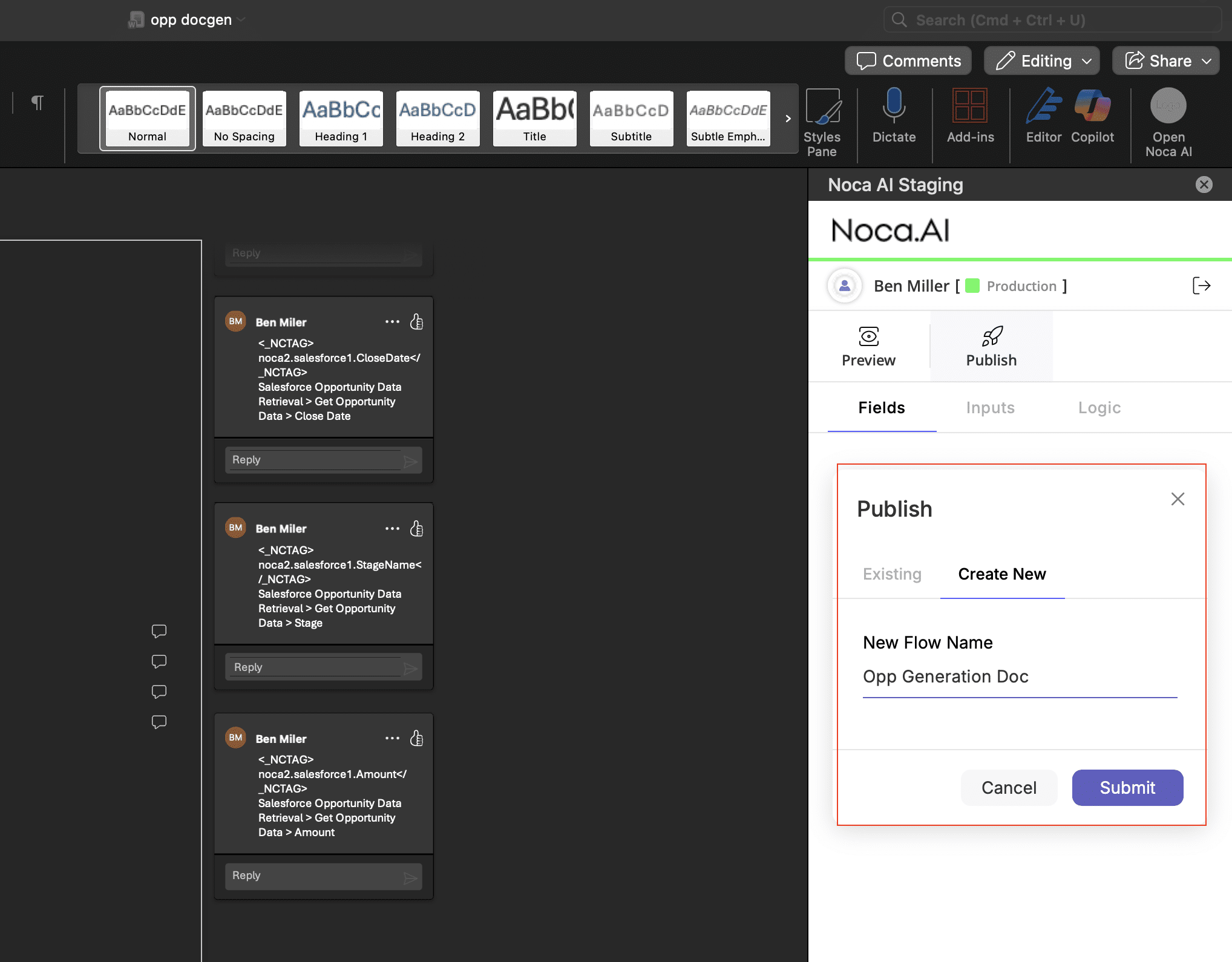
- Navigate to the Publish tab in your Noca Word Add-in
- Choose one of the following options:
- Create New Flow
- Use Existing Flow
- For this walkthrough, select Create New
Create a new flow
- Enter a name for the flow (example: Opp Generation Doc)
- Click Submit

- Open the new flow in the builder by following the generated URL in the add-in
Configure your Event Trigger
In this example we replaced the manual trigger that was automatically included in the flow with a Salesforce event. The following steps will be for that setup, but you may choose to trigger the flow in whatever way you would like.
- Remove the manual trigger
- Add a Salesforce Event trigger in it’s place


Configure the Salesforce Event Trigger
- Select a Salesforce object and event trigger type
- Choose the object: Opportunity (in this example)
- Set the event to trigger when an Opportunity is Created (or based on your chosen event setup)
- Choose your condition
- In this example: Stage Equals Perception Analysis
Confirm the Word template is already attached in the Word Node
- Select the Word Node in the flow
- Verify the published template file was automatically uploaded and is already available

Map the Opportunity ID into the Word Node
- Under mapping in the Word node, map the parameter that was mapped in the previous flow created to pull the fields into your template
- In this example the parameter we set was OppID, so choose that field and then drag the Opportunity ID from the first node to this field

- In this example the parameter we set was OppID, so choose that field and then drag the Opportunity ID from the first node to this field
- Choose your desired output format, Word Document, or PDF


Choose what to do with the generated document
- Decide on a destination for the generated document
- In this example, we used Slack to test out our flow thanks to it’s easy setup
- To do this, add an additional slack node
- To do this, add an additional slack node

Configure Slack Setup
- Choose the action to send to a user
- Select the recipient
- Enter a message
- Map the generated word document as the attachment from the Word node output

Activate Your Flow & Test
- Click Go Live under the flow title to activate the workflow
- Test the workflow by changing the status on an opportunity in Salesforce to Perception Analysis or whatever condition and trigger you chose

Verify the flow runs in Noca
- Return to your flow in Noca
- Open your logs
- Look for a new Event Processing entry
- Watch the event run and confirm the Word Document is generated
Verify the delivery in Slack
- Open Slack
- Confirm that you received the message
- Open the attached document and verify the data is populated as expected