


How to Get Connect AI assistants to Noca MCP server
Connecting AI assistants to Noca MCP server
Integrate your Noca workspace directly with Claude, ChatGPT, or other AI assistants.
In this guide, we’ll show you how to use Noca AI’s built-in MCP Server to connect your workspace to AI assistants, choose exactly which tools they can use, and work with your Noca data straight from a chat. In this example, we’ll enable the MCP Server, add Noca as a custom connector in Claude, ask how many Salesforce connections we have, and then connect the same server to ChatGPT.
Keep in mind you can connect the Noca MCP Server to any MCP-compatible AI assistant, and control per tool what it’s allowed to read, create, publish or delete.
Watch & Learn
Follow these steps to add and configure it:
Steps:
1
Open the MCP Server Page
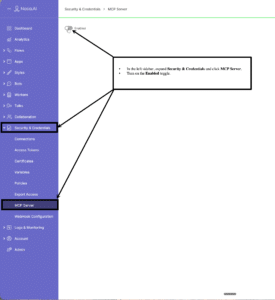
- In the left sidebar, expand Security & Credentials and click MCP Server.
- Turn on the Enabled toggle.
2
Choose the MCP Tools
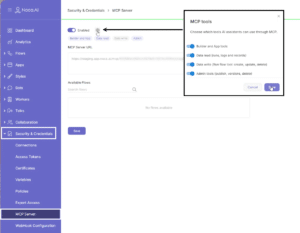
- Click the gear icon next to Enabled.
- Turn on the tool groups assistants may use: Builder and App, Data read, Data write, Admin.
- Click Save. Turn on Data write and Admin only if assistants should be able to change or delete things.
3
Copy the MCP Server URL
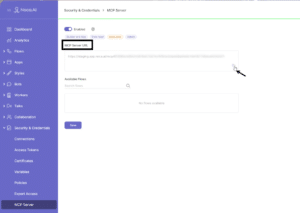
- Click the copy icon in the MCP Server URL field.
- Keep this URL private. It gives access to your workspace.
4
Add a Custom Connector in Claude
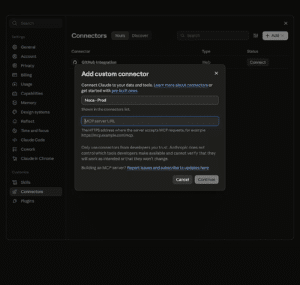
- In Claude, go to Settings → Connectors and click Add → Add custom connector.
- Enter a name, for example
Noca - Prod, and paste the URL. - Click Continue.
5
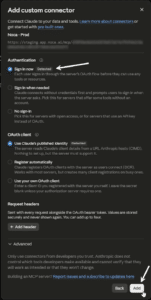
Confirm Authentication
- Wait while Claude checks the server.
- Keep the detected options, sign in now and use Claude’s published identity, and click Add.
- Complete the Noca sign-in if prompted.
6
Set Tool Permissions
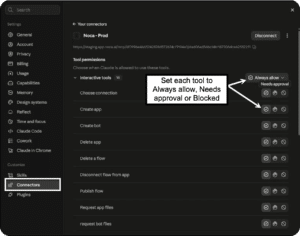
- Open the Noca – Prod connector to see every Noca tool.
- Set each tool to Always allow, Needs approval or Blocked.
- Put delete and publish actions on Needs approval.
7
Test It in Claude
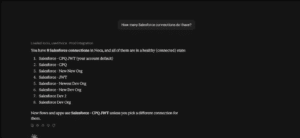
- Start a new chat and ask about your workspace, for example “How many Salesforce connections do I have?”
- Claude loads the Noca tools and answers with your live data.
8
Connect ChatGPT
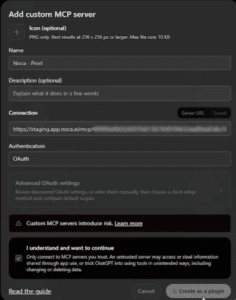
- In ChatGPT, click Plugins, then click Add and choose to add a custom MCP server.
- Enter the name, select Server URL, paste the URL and choose OAuth.
- Check I understand and want to continue and click Create as a plugin.
Back to top