


How to Embed a Noca App in Salesforce with JWT Authentication
What You’ll Build:
Embedded Noca Apps in Salesforce with JWT SSO
JWT (JSON Web Token) is a compact, signed token that lets Salesforce prove a user’s identity to a Noca app without sending passwords around. In a Salesforce embed, it acts like a tamper resistant “passport” that carries the essential claims Noca needs to trust the request and start a session. Because the token is cryptographically signed, Noca can verify it was issued by your Salesforce side and hasn’t been altered in transit. This enables smoother SSO for embedded experiences, so users land in the Noca app already authenticated instead of dealing with extra login prompts. Done right, JWT based embedding is both more secure and easier to manage than brittle, session based hacks.
Watch & Learn
Prerequisites
Noca Account
Admin level Salesforce access
Noca managed package installed in Salesforce
- Can be found here: Noca Managed Package
Follow these steps to add and configure it:
Step-by-Step
Generate the app structure
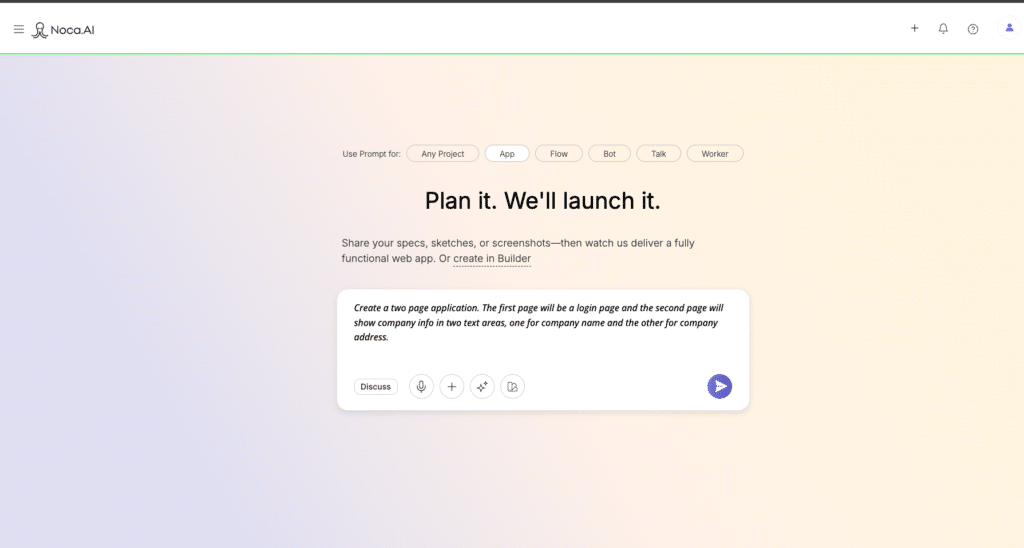
- In Noca, go to Apps > New
- Start with a prompt that describes the app you want to create.

Go to the security settings for your app
- Navigate to the kebab menu at the top right of your screen
- Click Security
Choose Salesforce Embed JWT as your Provider
- In the dropdown under Select Providers choose Salesforce Embed JWT
- Next under Choose Your Connection choose your previously established JWT Salesforce connection

- If you do not have a JWT connection established in Salesforce refer to this article: How to Establish a JWT Connection in Noca

Publish Your Project
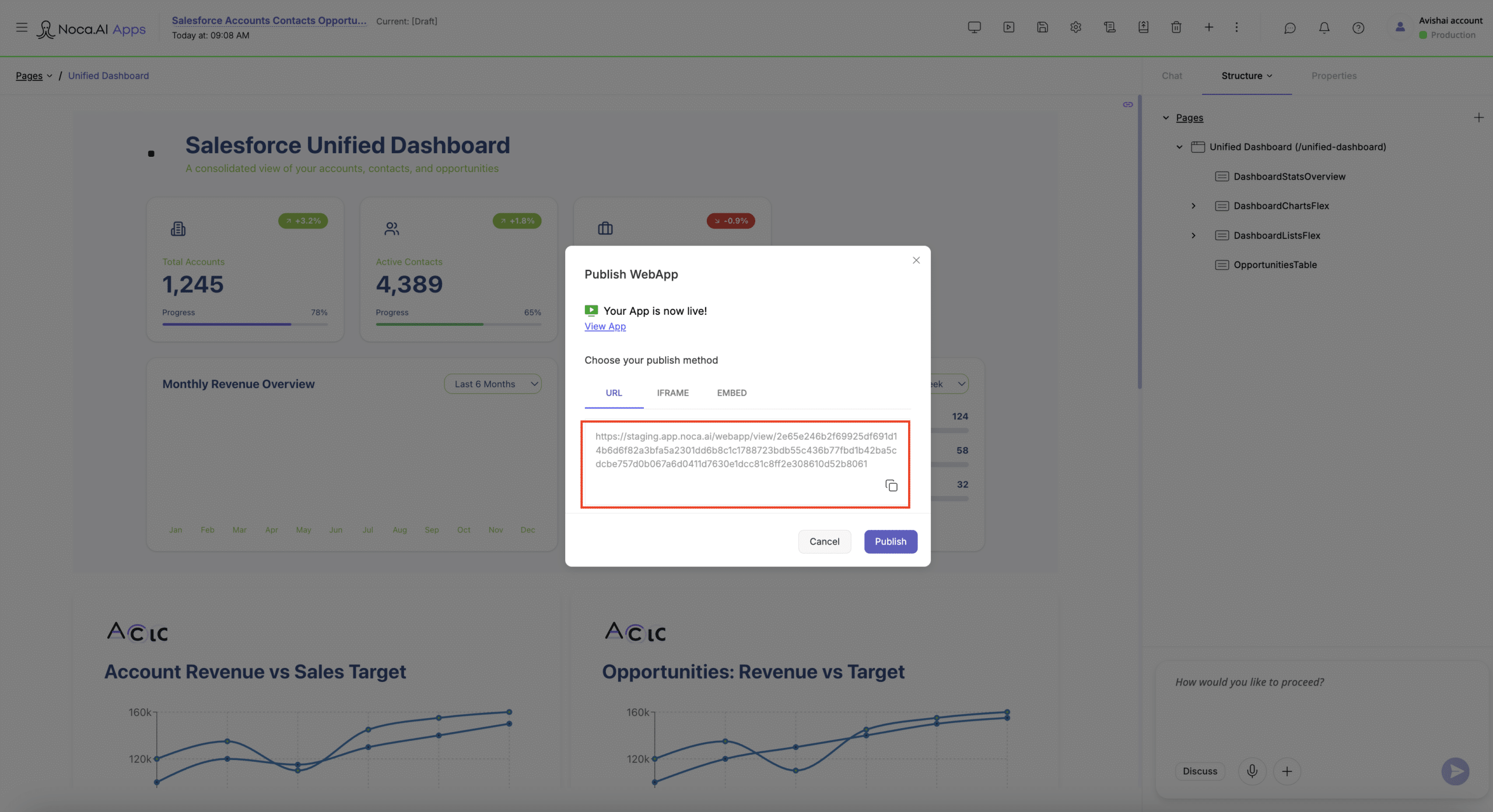
- Navigate to the Play Button on the top of your Noca dashboard and click Publish


Copy the Publish Link
Configure Your App Within the Noca Component in Salesforce
- Decide where in Salesforce you want to embed your Noca app
- Navigate to page setup
- Locate the Noca component in your components list on the left side of the screen
- Drag your Noca component to the location where you want to embed it
- Paste in the publish link from your project


Save and Activate
- Save and Activate your new Salesforce page layout according to your requirements and go to the page to see your new app!
