


How to use the Manual Trigger node
The Manual Trigger node lets you start a flow on demand—perfect for testing, debugging, or any ad-hoc task you want to run exactly when you choose. Its distinctive D-shaped outline makes it instantly recognizable as the flow’s start point.
Steps to use the Manual Trigger node
1
Create a new flow
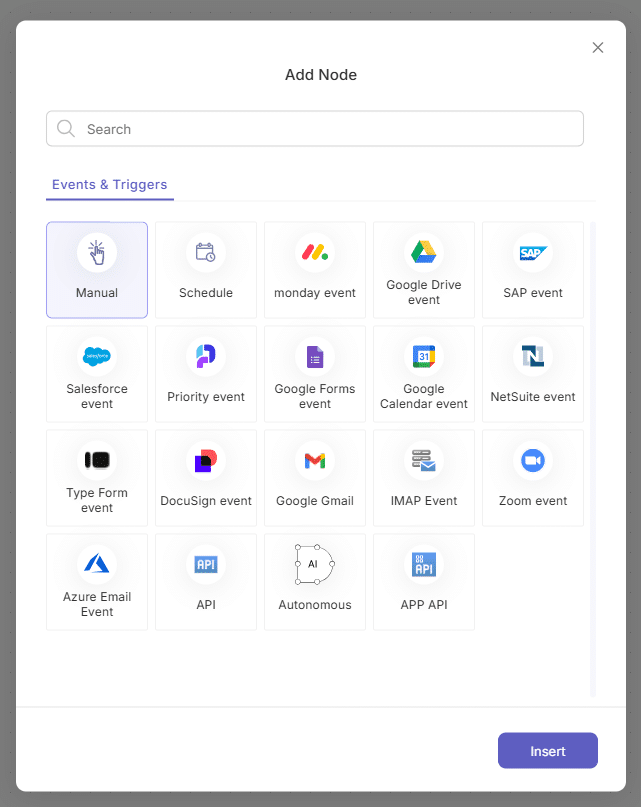
When you open the canvas, the “Add Node” modal appears automatically.
2
Insert the Manual Trigger
- Select the Manual Trigger option from the Events & Triggers tab.
then click Insert.
- A D-shaped node is placed on the canvas and its properties panel opens by default


3
Edit properties (optional)
This node has only a few settings, but you change them if needed.
4
Run the flow
-
- Click the Debug icon in the flow builder’s header.
- Choose one of two options:
- Publish & Run: Publishes your flow and then executes it immediately.
- Debug Draft Version: Opens the debug screen and starts the flow right away


Back to top