

Monitoring Events in Noca AI
In short: Monitor events across your Noca AI flows in real time. Stay informed about triggers, executions, and system activity to keep your automations on track.
Last updated:
Key takeaways
- In Noca AI, an event is a triggering signal from an external service or app that starts a flow.
- The Events Log under Logs & Monitoring > Events lists each event's service, active and enabled status, last editor and flow.
- From the Events table actions menu you can disable an event to stop it triggering flows or delete the event record.
In Noca AI, an event represents a triggering signal from an external service or app that initiates a flow. Events are a key part of automation – they ensure that your workflows respond in real-time to changes or actions happening in connected systems.
The Events Log helps you monitor and manage these triggers. It provides visibility into which services are sending events, their status, and where they’re used – so you can ensure your flows are reacting as expected.
Watch & Learn
Where to Access Events
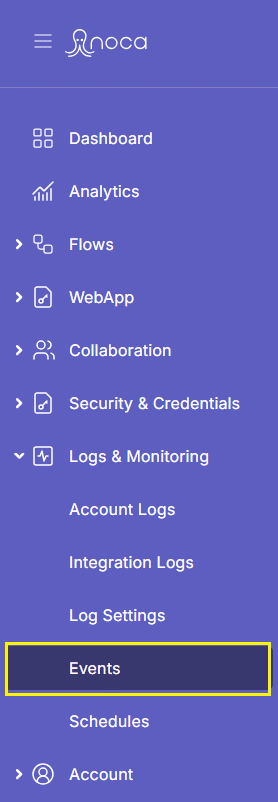
Navigate to:
Left Drawer Menu > Logs & Monitoring > Events
Events Table Overview
The Events Log screen provides:
- A breadcrumb for navigation in the header
- A search box for finding specific events (e.g., by service name or flow)
- An Events table
Table Columns:
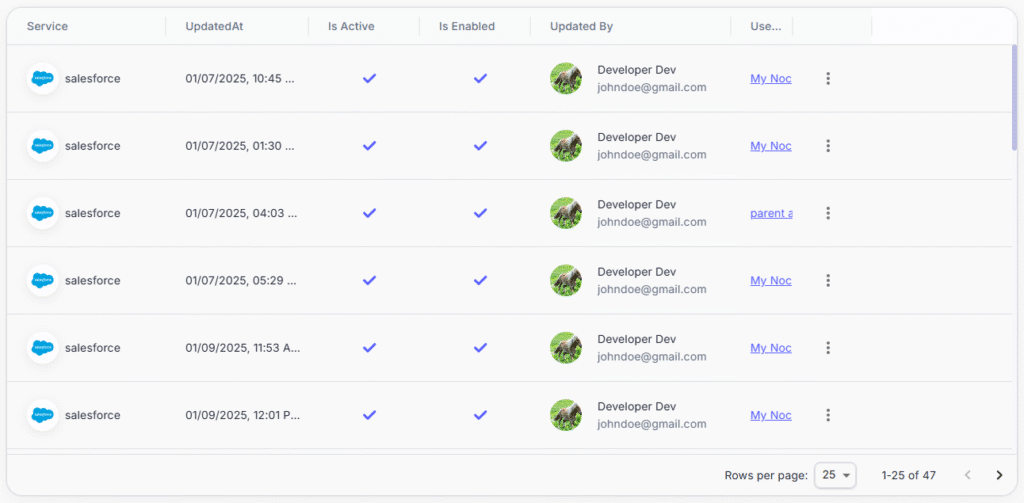
Service Logo + Name
Identifies the external service or app generating the event
Updated At
Date and time when the event was last updated
Is Active
Indicates if the event is currently active (receiving data)
Is Enabled
Indicates if the event is enabled (ready to trigger flows)
Updated By
Shows who last modified the event (user avatar, name, and email)
Used In
Displays the flow name where this event is used, including a link to the flow
Actions Menu (⋮)
• Disable – Temporarily stop the event from triggering flows
• Delete – Remove the event record
Frequently asked questions
How do I see which events are triggering my Noca flows?
Noca AI shows all flow triggers in the Events Log, found in the left drawer menu under Logs & Monitoring > Events. The table lists the service sending each event, when it was last updated, whether it is active and enabled, who last modified it, and the flow it is used in, with a link to that flow.
What is the difference between Is Active and Is Enabled in Noca's Events Log?
In the Noca Events Log, Is Active indicates whether the event is currently active, meaning it is receiving data from the external service. Is Enabled indicates whether the event is enabled and ready to trigger flows. Checking both columns helps confirm that your flows are reacting to connected systems as expected.
How do I stop an event from triggering a flow in Noca?
To stop an event from triggering a flow in Noca, go to Logs & Monitoring > Events, find the event using the search box, open its actions menu and choose Disable. This temporarily stops the event from triggering flows. The same menu also has a Delete option if you want to remove the event record entirely.