


Managing Teams in Noca AI
In short: Create and manage teams in Noca AI to keep your workspace organized. Assign members, control access, and collaborate on flows across your organization.
Last updated:
Key takeaways
- Noca AI Teams let you group users and manage their access through a shared role that defines the team's permissions.
- Teams are managed under Left Drawer Menu > Collaboration > Teams, where you can add, view, edit and delete teams.
- Only existing users can be added to a team, so create users on the Users page first if none are available.
In collaborative projects, it’s common for multiple individuals — or entire teams — to work together on automation, integration, and system operations. Noca AI makes it easy to group users into teams and manage access through shared roles and permissions.
Watch & Learn
Where to Manage Teams
Navigate to:
Left Drawer Menu > Collaboration > Teams
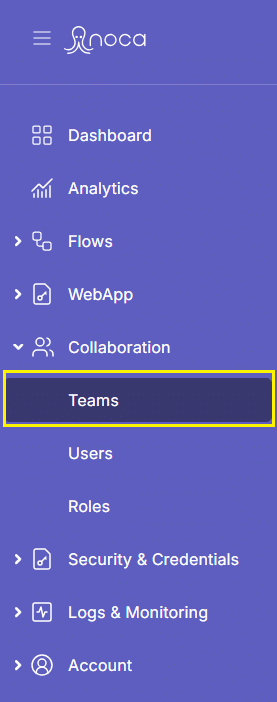
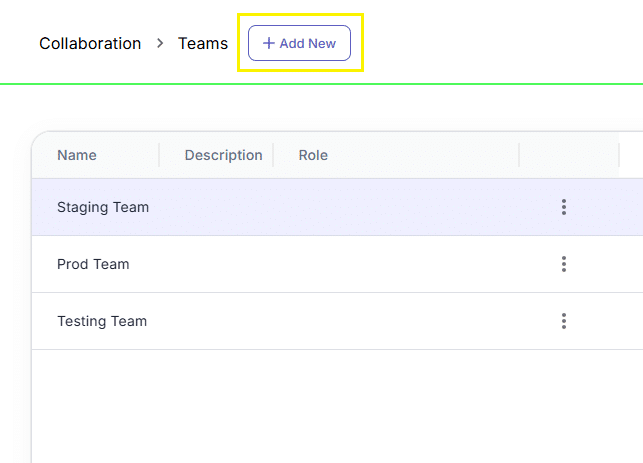
In this screen, you’ll find:
- A breadcrumb for navigation
- An “Add New” button to create a team
- A table listing your current teams with the following columns:
Team Name
Description
Role
Team ID
Actions Menu (⋮) – Options to:
- View team details
- Edit team info
- View / Edit / Add users to the team
- Delete the team
How to Add a Team
Click the “Add New” button
A New Team modal will appear
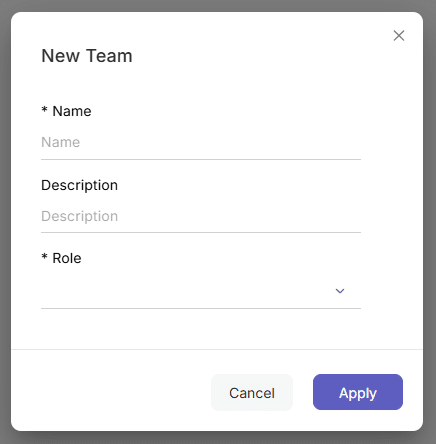
Fill in the following:
- Team Name
- Description
- Assigned Role (select from dropdown)
Each role defines a unique set of permissions, so by assigning a role, you determine what the team is allowed to access or modify.
Learn more about roles
Click Save
The new team will now appear in the table. But your work isn’t done yet — you’ll need to assign users to it.
How to Add Users to a Team
In the table, locate the team you want to update
Click the ⋮ kebab menu > Users
In the Team Users modal, you’ll see:
- A list of current users (if any)
- A trash icon next to each user to remove them
- An “Add Users” button at the top
Click “Add Users”
- A secondary modal opens with a dropdown listing all available users
- Select a user and click Apply to add it to the team
🔐 Important: You can only add existing users to a team. If no users are available, first create them via the Users Page.
Frequently asked questions
How do I create a team in Noca AI?
To create a team in Noca AI, go to Left Drawer Menu > Collaboration > Teams and click Add New. In the New Team modal, enter a Team Name, a Description and an Assigned Role from the dropdown, then click Save. The team appears in the table, but you still need to add users to it afterward.
How do I add users to a team in Noca?
In Noca, locate the team in the Teams table, click its kebab menu and choose Users. In the Team Users modal, click Add Users, pick a user from the dropdown and click Apply. You can remove members with the trash icon next to each user. Only existing users can be added, so create new users on the Users page first.
How do permissions work for teams in Noca AI?
Team permissions in Noca AI come from the role assigned to the team. Each role defines a unique set of permissions, so selecting a role when you create or edit a team determines what every member of that team is allowed to access or modify. This makes it easy to manage access for groups collaborating on automation and integrations.