


How to Get Started with DocRag AI in Noca
DocRag AI
Read documents with AI and map the answers to wherever you need them
In this guide, we’ll show you how to use the DocRag AI node in Noca AI to dynamically read documents using AI, ask questions about their content, and map the extracted answers to any destination app. In this example, we’ll pull a purchase order from Google Drive, extract key data with DocRag AI, and push it into a new Salesforce account.
Keep in mind you can use DocRag AI with any document source (Salesforce, Monday.com, etc.) and push the results to any app in your tech stack.
Watch & Learn
Follow these steps to add and configure it:
Steps:
1
Set up your document source
- Add a Google Drive node to your flow
- Select the Download File action
- Choose your folder and enter the file name to pull the document


2
Add the DocRag AI node
- Click DocRag AI from the node menu to insert it into your flow
- In the File field, map the file content from your previous node (the Google Drive output)
- If your source is Salesforce, map Version Data instead
- If your source is Monday.com, map the file field


3
Add your questions
- In the questions section, add the questions you want AI to answer about your document
-
- What is the PO number?
- What is the date of the PO?
- Who is the customer?
- For this purchase order example, we add three questions


4
Configure model settings (optional)
- Choose between Leading Model 1 or Leading Model 2 depending on what works best for your document type
- Optional features include:
- Deep Search: For more thorough document analysis
- Table Mode: Optimized for documents containing tables
5
Add a destination node
- Decide where you want to send the extracted information
- In this example, we add a Salesforce node after the DocRag AI node
- Select the Create Account action


6
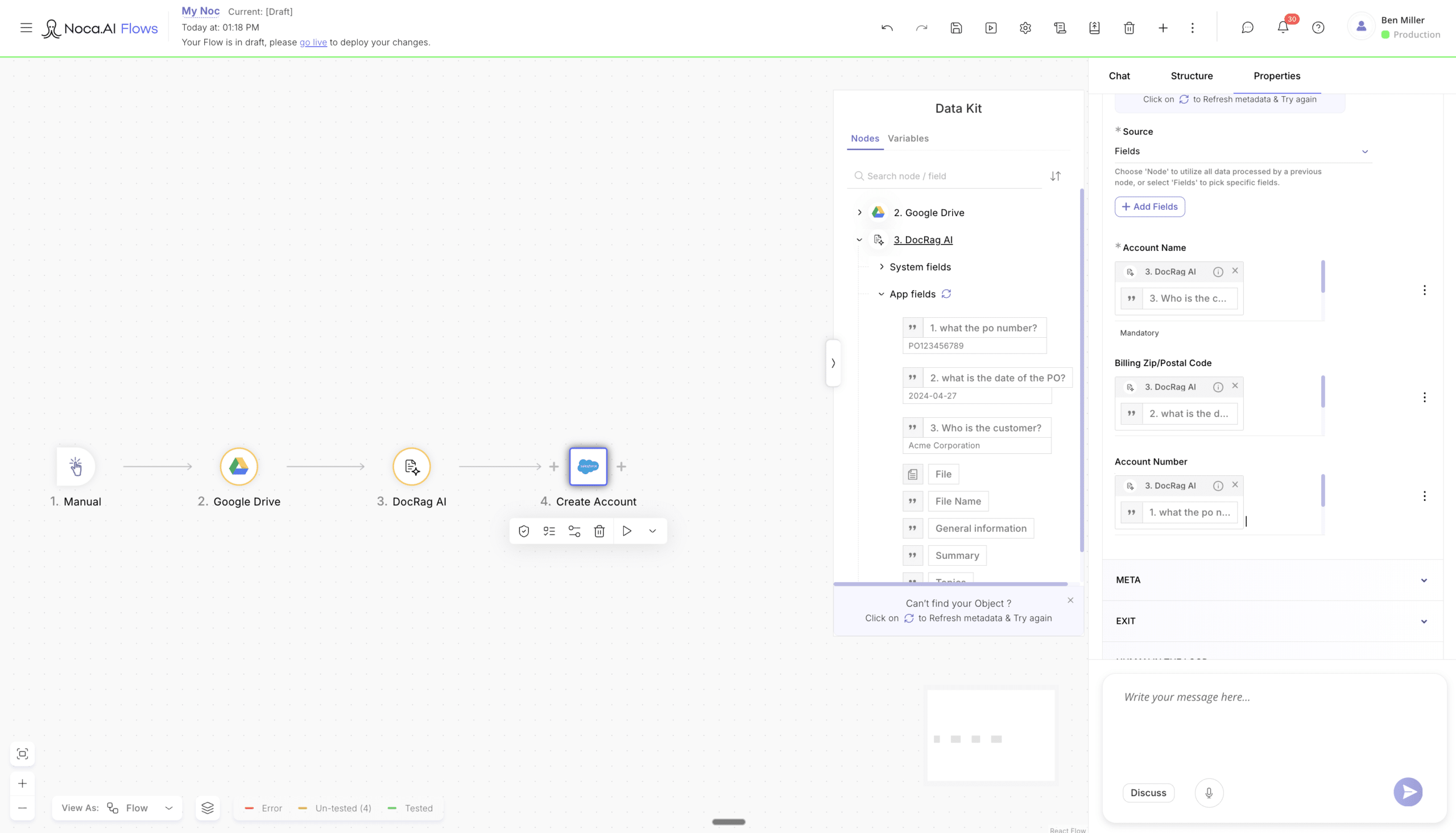
Map the DocRag AI fields to your destination
Map the answers from the DocRag AI node to your Salesforce fields:
- Account Name → “Who is the customer?”
- Billing Zip Code → “What is the PO number?”
- Account Number → “What is the date of the PO?”
7
Run your flow
- Click Run to execute the flow
- Open the Debug panel to review the answers DocRag AI extracted from your document
8
Verify in your destination app
- Head over to Salesforce and confirm the new account was created
- Verify the account name, account number, and billing address are populated exactly as extracted by DocRag AI
Back to top