


How to Use Input Fields in Noca Docs
Noca Docs
Collect data from end users using Noca Docs
In this guide, you’ll learn how to add input fields in a Noca Docs template. Then send the document as a fillable URL, and automatically write the completed responses back to Salesforce. We’ll walk through creating a text input field, publishing the document to a flow, sending the fill URL through Slack, and updating the originating Opportunity when the form is completed.
Watch & Learn
Follow these steps to add and configure it:
Steps:
1
Start with an existing Noca Docs Template
- Open your existing Noca document template
- Confirm the document already pulls data from an existing integration via a Noca Flow
2
Add an input field to the document
- Open the Noca add-in menu
- Click Add

- Select an input field type
- For this example we chose text
- Name the field
- In this example we named the field Probability
- In the template we wrote using static text: What is the probability of the deal?
- Choose Insert

3
Publish the Document
- Click Publish
- Choose an already created flow or create a new flow
- In the video we created a new flow and added a Salesforce trigger and a slack node for delivery
- For more detailed instructions of how to setup your flow, refer to this article: How to Publish Template
4
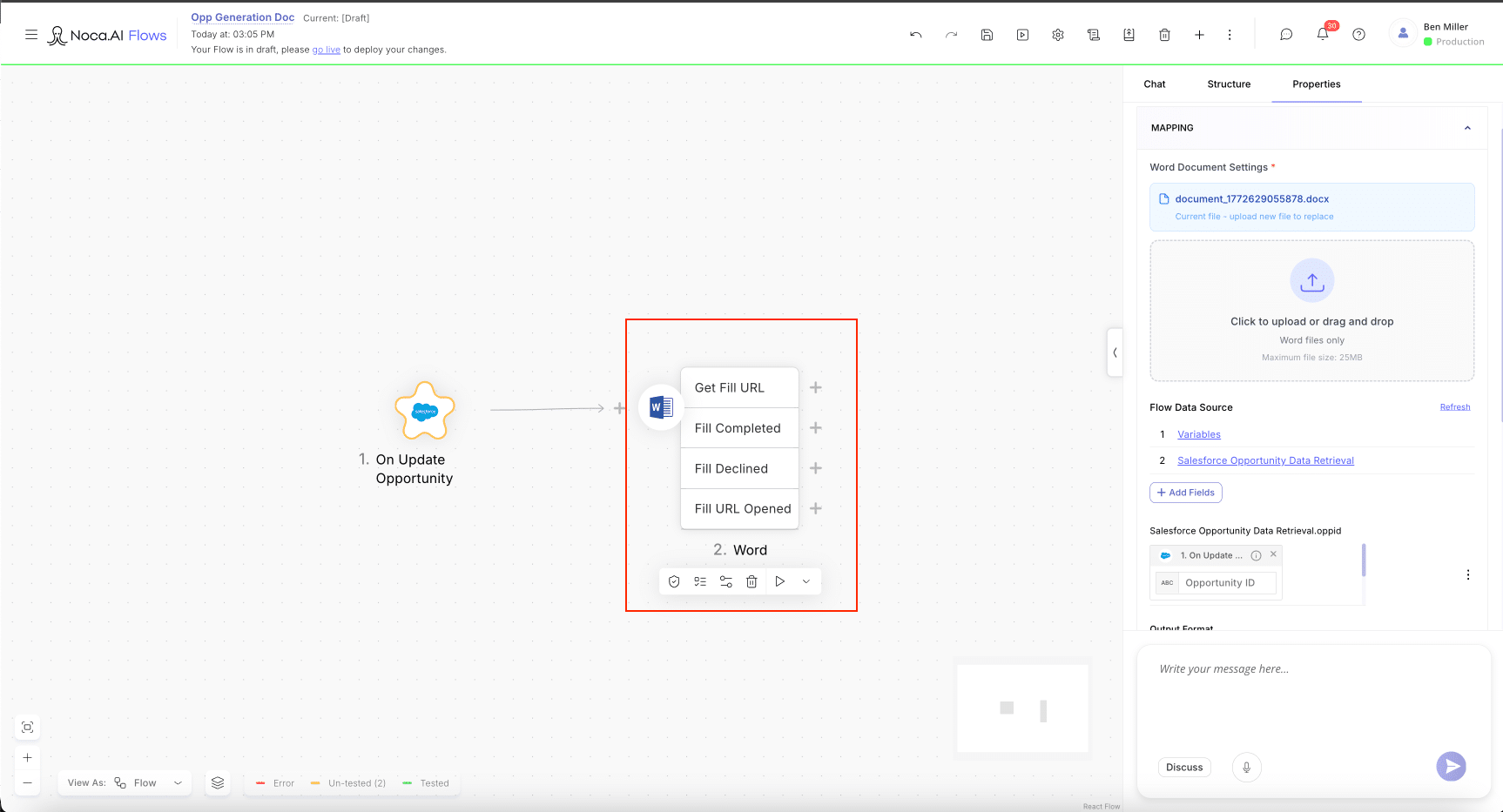
Configure the Word Node in Your Flow
- Select the Word Node in Your Flow
- Decide what you would like to do with your document for each scenario
- Fill URL: This will send a URL with your document and the interactive fields to a user for completion
- Fill Completed: Determines what will happen with the document and any input fields or parameters after it is completed
- Fill Declined: If the document is declined or voided by the end user this is where you configure the delivery of the void receipt
- Fill URL Opened: This is where you configure notifications for when the document URL is opened
- Simply click on the plus icon next to each option to determine your configurations

5
Configure where the input fields should go after being filled
The input fields can be saved as part of the document, but additionally they can be used as individual data points to be saved against your system of record. In this example, we pushed the input fields to a field in Salesforce. Here are the steps to do so.
- In the Fill Completed path in the Word Node, select the plus sign.
- Add a Salesforce node
- Choose Opportunity and select Update
- Map the input field back to Salesforce
- In the Salesforce update node, open the field mappings
- Add a field that you would like to update in Salesforce. In this example we used the probability field on the opportunity.
- Map the document input field Probability into the Salesforce Probability Field
- Add a condition for your new node
- In our example we matched Opportunity ID with the Opportunity ID from the first node in the flow

6
Go Live and Test
- Activate your new flow and test to make sure that it is working
Back to top