


How to Install Word Add-In for Doc Gen (PC)
Noca Word Add-In
Bring metadata from your integrations to Noca Docs
This guide shows you how to install the Noca Microsoft Word add in on Windows using a shared folder and trusted add in catalog. You’ll move the XML add in file into a local folder, share that folder, add it to Word’s Trust Center, and then restart Word to launch the Noca add in.
If you are using a Mac device please follow the documentation here: https://support.noca.ai/how-to-install-word-add-in-for-doc-gen-mac/
Watch & Learn
Follow these steps to add and configure it:
Steps:
1
Get the add-in XML file
- Ask any Noca team member for the add-in XML file
- Download it to your PC (it will end in .xml)
2
Create a folder for the add-in
- Create a new folder on your computer where you want to store the add-in file
- Use a simple folder name you can easily find later
- For example: Noca-addin
3
Move the XML file into the new folder
- Copy the XML file from your Downloads folder (or where it was saved)
- Paste it into the new folder you create
4
Share the folder with users on your device
- Right click the newly created folder
- Open properties
- Navigate to the Sharing tab
- Click Share

- Choose who to share with and select Everyone or your specific user
- Share the folder with all users on your computer


5
Copy the folder network path
- After sharing, locate the folder’s network path (the shared path)
- Copy the path
- This will be used as the add-in catalog URL in Word
- This will be used as the add-in catalog URL in Word

6
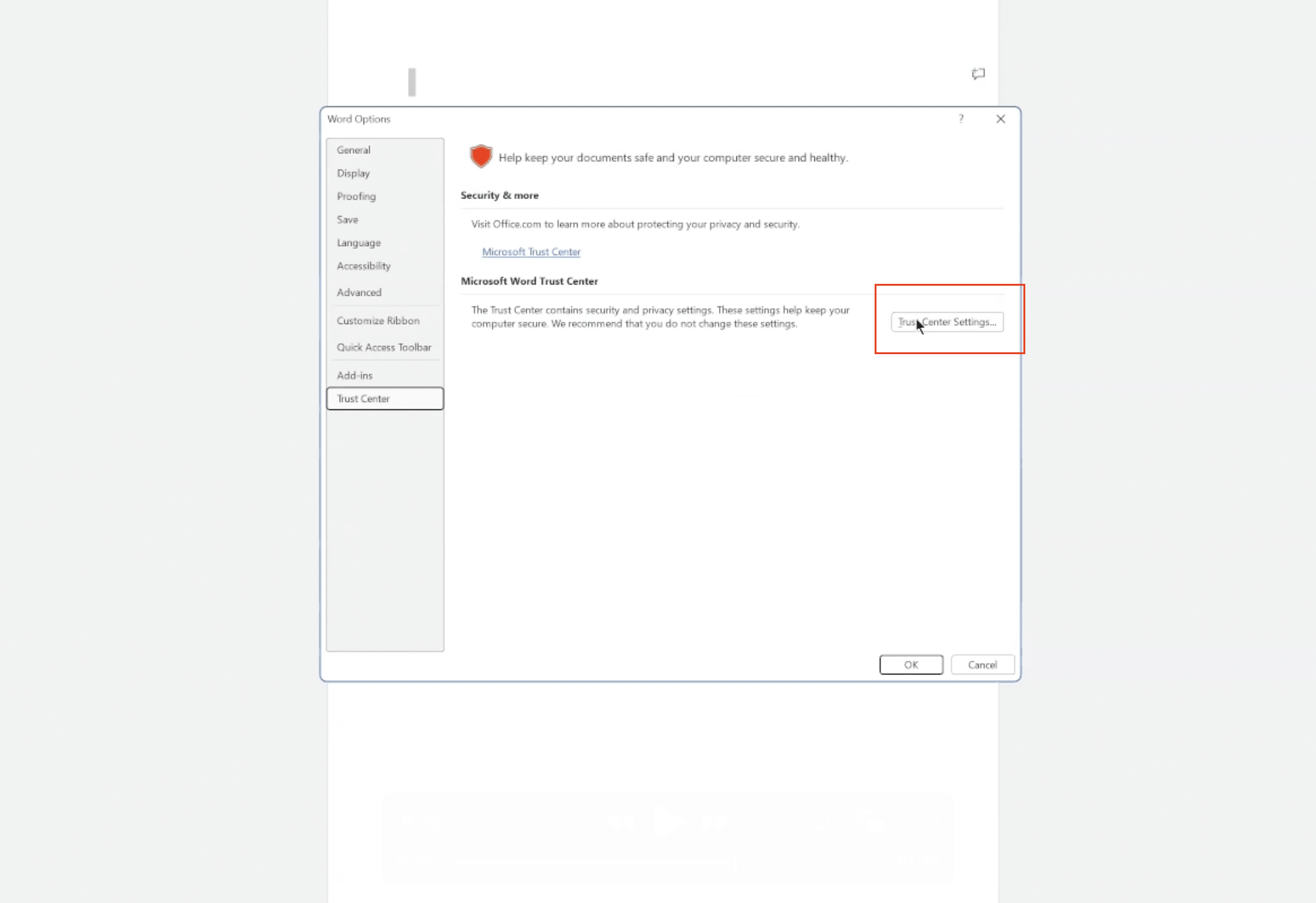
Open Microsoft Word and Go to Trust Center
- Open Microsoft Word
- Click Options
- Go to Trust Center
- Click Trust Center Settings
- Open Trusted Add-in catalogs
7
Add the shared folder as a trusted add-in catalog
- Paste the shared folder path into the Catalog URL field
- Click Add Catalog
- Check Show in Menu
- Click Ok (and continue clicking ok to close the settings windows)


8
Restart Microsoft Word
- Close Microsoft word completely
- Without closing Word you will not be able to access the add-in
- Reopen Microsoft word
9
Access the Noca add-in
- In Word, go to Add-Ins on the top right of the screen
- Open Advanced
- Click the Noca add-in to launch it
- Log in and get started


Back to top